There is nothing more frustrating than plugging in your smartphone, waiting an hour, and realizing the battery percentage has barely moved. In today’s fast-paced world, dealing with a phone charging slowly can disrupt your entire day.
When a phone takes forever to juice up, most people immediately assume the battery is dying or that they need to buy an expensive new phone. However, smartphone charging is a complex ecosystem involving hardware handshakes, software throttling, and physical physics. More often than not, the culprit behind your phone charging slowly is a hidden bottleneck you can fix yourself for free.
In this comprehensive troubleshooting guide, we will deep-dive into the 10 hidden reasons your phone is charging slowly and show you the exact step-by-step DIY fixes to restore your device to lightning speed.
1. Pocket Lint and Debris Compressed in the Charging Port
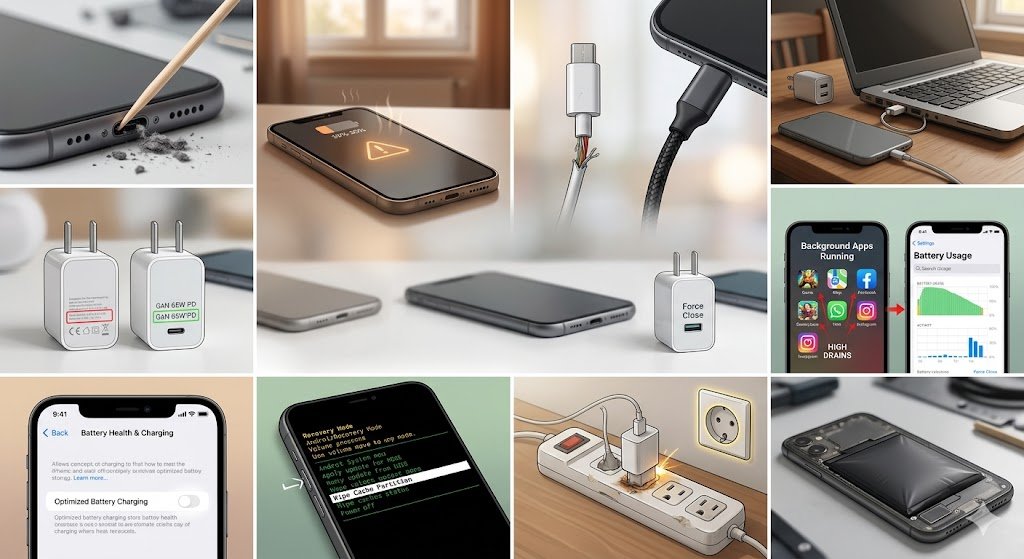
This is overwhelmingly the number one reason phones suddenly stop fast-charging or require you to wiggle the cable to get a connection. Every time you push your phone into your pocket or jeans, tiny particles of cotton lint, dust, and debris get shoved inside the USB-C or Lightning port. Over months, plugging the cable in tightly compresses this debris into a hard wall at the back of the port, preventing the charging pins from making full electronic contact and leaving your phone charging slowly.

How to Fix It (The Toothpick Method)
-
Turn off your smartphone completely to avoid any accidental electrical shorts.
-
Take a standard wooden or plastic toothpick (never use a metal needle, safety pin, or paperclip, as metal can permanently bend the internal pins or short out the motherboard).
-
Gently insert the toothpick into the port and scrape along the back wall in a sweeping motion.
-
You will be amazed at the tightly packed balls of lint that pull out.
-
Blow into the port or use a can of compressed air to clear out the remaining loose dust, then plug your cable back in.
2. Thermal Throttling (The Phone is Too Hot)
Smartphones use advanced Lithium-Ion or Lithium-Polymer batteries, which are highly sensitive to temperature. Modern devices feature built-in safety mechanisms controlled by the CPU. If your phone’s internal sensors detect that the ambient temperature or battery core is getting too hot, it initiates thermal throttling. To protect your phone from permanent damage, swelling, or thermal runaway, the system intentionally cuts the charging speed down to a crawl, resulting in your phone charging slowly.

How to Fix It
-
Stop using the phone while charging: Playing intensive mobile games, streaming high-definition video, or using GPS navigation while plugged in generates immense heat.
-
Remove thick protective cases: Heavy-duty, rugged plastic or rubber cases trap heat like an oven. Take the case off while charging.
-
Avoid hot environments: Never leave your charging phone on a car dashboard under direct sunlight, on top of electronics, or tucked under your pillow at night. Move it to a cool, flat surface.
3. A Damaged, Frayed, or Cheap Charging Cable
We treat our charging cables harshly. We bend them, twist them, wrap them tightly, and pull them at awkward angles. A charging cable looks simple on the outside, but inside, it contains thin copper wires responsible for transferring power. If even one or two of those internal strands fracture, the cable can still pass a tiny amount of electricity (keeping the phone “charging”), but it will lose the capability to carry the high amperage required for quick charging, keeping your phone charging slowly. Furthermore, cheap gas-station cables are often made with ultra-thin wire gauges that simply cannot support fast charging protocols.
How to Fix It
-
Run your fingers down your current cable. If you feel kinks, bumps, or see exposed wiring near the joints, discard it immediately.
-
Always invest in high-quality, heavy-gauge cables. Look for brands that offer braided nylon shielding and are rated explicitly for your phone’s maximum wattage (e.g., 60W or 100W Power Delivery cables).
4. Using Weak Power Sources (Laptops, Cars, and Old Bricks)
Where you plug your cable matters just as much as the cable itself. If you are plugging your phone into the USB port of a desktop computer, a laptop, an old clock radio, or a basic dashboard port in an older vehicle, you will find your phone charging slowly at a snail’s pace. A standard laptop USB 2.0 port only outputs 0.5 amps (2.5 Watts) of power. Modern smartphones require anywhere from 2.0 to 6.0+ amps (18W to 120W+) to successfully trigger fast charging.
How to Fix It
-
Always plug your cable into a dedicated wall outlet adapter rather than a secondary media device.
-
If you must charge on the road, purchase an active, high-quality cigarette lighter adapter labeled with QC 3.0 (Quick Charge) or PD (Power Delivery) specifications to ensure it pulls full wattage directly from your car battery.
5. Mismatched Charging Protocols (The Adapter Bottleneck)
Not all power bricks are created equal. You cannot simply grab an old charging brick from a phone you owned five years ago and expect it to fast-charge a modern device. Furthermore, different manufacturers use completely different charging technologies. For example, Samsung uses Programmable Power Supply (PPS), OnePlus uses SuperVOOC, and iPhones rely on USB Power Delivery (USB-PD). If your wall adapter doesn’t speak the exact technical language as your phone, the system defaults back to the slowest, safest speed, leaving your phone charging slowly.

How to Fix It
-
Check the fine print printed on your charging brick. Look for the “Output” section. If it only reads 5V ⎓ 1A, it is a legacy 5-Watt charger and will take hours to charge a modern battery.
-
Match your phone’s requirements. Look for an adapter that explicitly supports GaN (Gallium Nitride) technology and matches or exceeds your phone’s original out-of-the-box charging wattage.
6. Background App Drain and Rogue Wakelocks
Sometimes, your hardware is pushing power perfectly, but a software glitch is spending that power just as fast as it arrives. If an application crashes in the background or encounters a glitch, it can enter a loop known as a wakelock. This prevents your phone’s CPU from entering an idle, low-power state. If your processor is running at 100% maximum capacity in the background while your screen is off, it will cannibalize incoming current and cause a situation where you see your phone charging slowly.

How to Fix It
-
Go to Settings $\rightarrow$ Battery $\rightarrow$ Battery Usage to check your device diagnostics. Look for any app showing an unusually high percentage of battery consumption that you haven’t actively used.
-
Force close or uninstall the offending application.
-
Perform a simple System Restart once a week to flush out memory leaks and clear system processes.
7. “Optimized Charging” and AI Battery Software Features
Both Android and iOS feature intelligent software options designed to prolong the long-term lifespan of your physical battery. Features like Apple’s Optimized Battery Charging or Android’s Adaptive Charging learn your daily habits. If you routinely plug your phone in at 11:00 PM and wake up at 7:00 AM, the software will intentionally fast-charge your phone to 80%, hold it there slowly for hours, and complete the final 20% right before you wake up. While brilliant, it can look like your phone charging slowly or stuck if you plug it in midday.

How to Fix It
If you need a rapid charge right now and want to temporarily bypass this artificial limit:
-
On Android: Navigate to Settings $\rightarrow$ Battery $\rightarrow$ Adaptive Preferences and toggle off Adaptive Charging.
-
On iPhone: Navigate to Settings $\rightarrow$ Battery $\rightarrow$ Battery Health & Charging and disable Optimized Battery Charging.
8. Corrupted System Cache Files
Whenever your smartphone downloads a major operating system update, it leaves behind temporary operational files in a directory known as the system cache partition. Occasionally, these old files conflict with new system files, confusing the power management calibration layout. This can lead to inaccurate battery readings, random percentage jumps, or severely throttled charging rates that leave your phone charging slowly.
How to Fix It (Wipe Cache Partition)
Note: Wiping your cache partition will NOT delete your personal photos, files, or apps.
-
Power down your Android device completely.
-
Press and hold the Volume Up + Power Button simultaneously until the recovery logo displays on the screen.
-
Use the physical volume buttons to scroll down through the text menu until you highlight “Wipe Cache Partition”.
-
Press the Power button to execute the command, confirm your choice, and then select “Reboot System Now”.
9. A Faulty or Loose Extension Cord/Power Strip
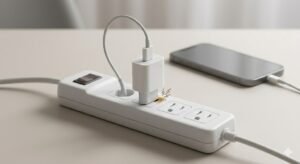
Many of us don’t plug our chargers directly into the wall; instead, we plug them into multi-outlet power strips, surge protectors, or long extension cords tucked behind our nightstands. Over time, the internal metallic clamping tracks inside cheap power strips become loose and worn down. This creates micro-gaps in the physical connection, causing minor resistance that fluctuates the current and trips your smartphone’s internal safety breaker, reverting it back to a slow trickle charge and causing the phenomenon of a phone charging slowly.
How to Fix It
-
Conduct an easy diagnostic test: Bypass the extension cable completely.
-
Unplug your charging brick from the power strip and insert it directly into a primary, permanent wall socket on your home’s main electrical ring. If your phone suddenly indicates “Fast Charging,” it’s time to throw away that old power strip.
10. Degraded Physical Battery Health
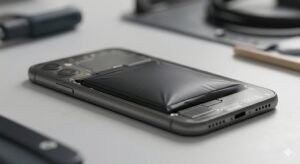
If you have applied all of the fixes listed above and your phone still takes ages to move up even a few percentage points, you may be dealing with natural physical hardware degradation. Smartphone batteries have a lifespan calculated in “cycles.” After roughly 300 to 500 full charge-and-discharge cycles (about two years of daily usage), the internal chemicals degrade. The internal electrical resistance increases significantly, which causes the battery to reject rapid power intake and convert that energy into waste heat instead, resulting in your phone charging slowly.
How to Fix It
-
Check Your Health: On iOS, go to Settings $\rightarrow$ Battery Health to see your maximum capacity percentage. On Android, download an accurate hardware diagnostic app like AccuBattery to calculate your remaining capacity.
-
If your overall battery health dips below 80%, software fixes will no longer work. Your best option is to take your device to an authorized repair shop to get a certified, OEM replacement battery installed. It will breathe brand-new life into your existing phone for a fraction of the cost of buying a new model!
Conclusion
A phone charging slowly doesn’t mean your device is reaching the end of its life. Start by cleaning out your port with a toothpick, swapping out that worn-out cord for a heavy-duty braided cable, and plugging directly into a high-powered wall brick. Nine times out of ten, these simple, free steps will clear up the bottleneck and bring your fast charging back to peak performance!
📚 More Tech Fixes:
→ Android Phone Overheating? 12 Fixes
→ Phone Charging Slowly? 10 Fixes
📧 Need help? Contact us