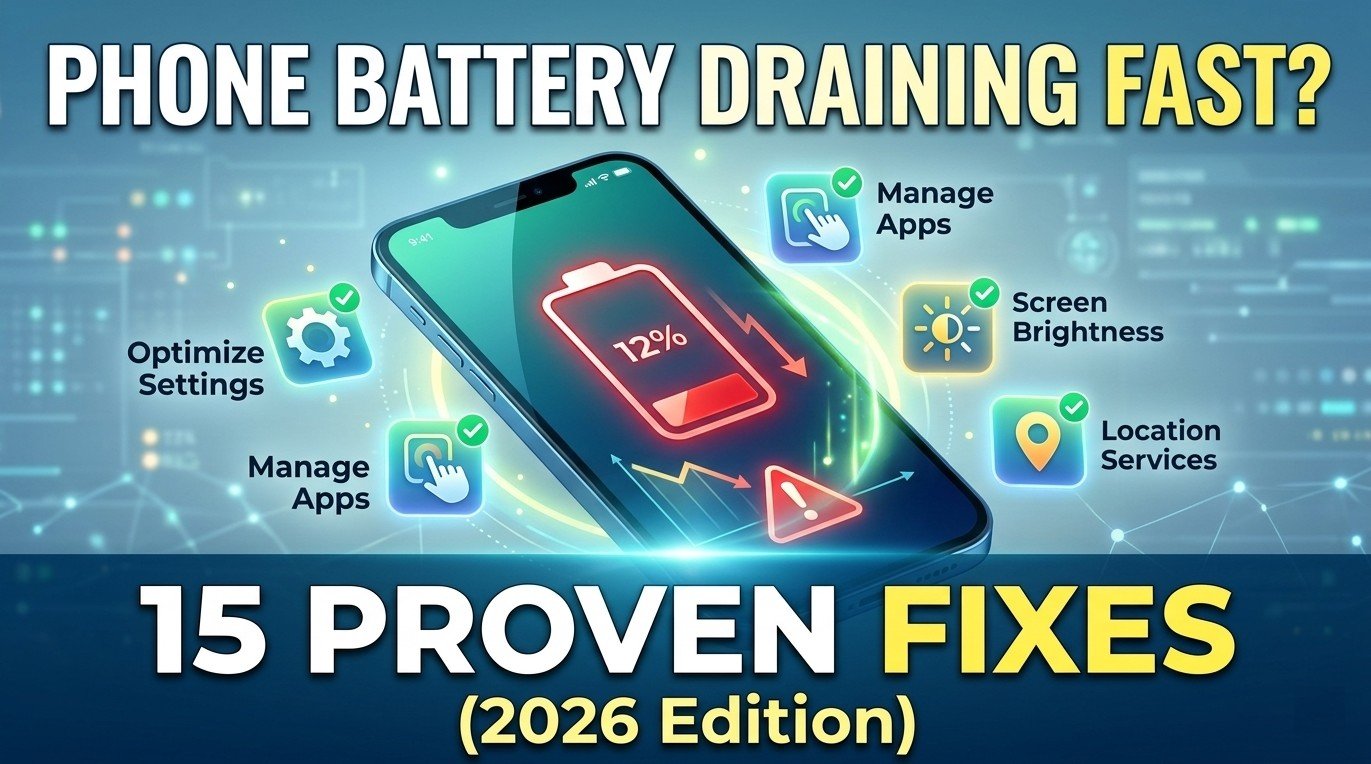
You left home with 80% battery. Two hours later, without much use, you are down to 30%. Sound familiar?
Fast battery drain is the #1 complaint smartphone users have today. But here’s the truth: most battery problems aren’t hardware issues. They’re settings, habits, and hidden apps you can fix in minutes.
In this guide, I’ll show you 15 proven fixes that actually stop phone battery draining fast. No fake tips. No “magic” apps. Just real solutions that work.
Before You Start: Check Your Battery Health
If your phone is over 2 years old, the battery itself might be worn out. Here’s how to check if your battery is draining fast due to age:
- iPhone: Settings → Battery → Battery Health → Look for “Maximum Capacity” below 80%
- Android: Download AccuBattery app → Charge fully → Check “Battery Health” percentage
If your battery health is below 80%, replacement is the only real fix for your phone battery draining fast. Skip to Fix #15. If your battery is healthy, let’s fix the drain.
Fix 1: Find and Kill Battery-Hogging Apps
One single app can destroy your battery. I’ve seen weather apps, social media apps, even flashlight apps drain 30% battery overnight. This is a top reason for battery draining fast on Android and iPhone.
How to find the culprit:
- iPhone: Settings → Battery → Scroll down to “Battery Usage By App”
- Android: Settings → Battery → Battery Usage
Look for apps with high percentages that you don’t use often. Facebook, TikTok, and gaming apps are common offenders. Uninstall or restrict their background activity to stop battery drain fast.

Fix 2: Turn Off Background App Refresh
Many apps refresh their content even when you’re not using them. Weather apps check temperature. News apps download stories. Social media checks notifications. All of this consumes power and makes your battery drain fast.
How to disable:
- iPhone: Settings → General → Background App Refresh → Turn off completely or select only essential apps
- Android: Settings → Apps → Select each app → Tap “Mobile data & Wi-Fi” → Turn off “Background data”
Fix 3: Reduce Screen Brightness (And Use Auto-Brightness)
Your screen is the #1 battery consumer. At maximum brightness, your phone might last only 4-5 hours. At 50% brightness, you could get 8-10 hours. High brightness is a major reason for phone battery draining fast.
What to do:
- Keep brightness at 50% or lower when indoors
- Enable auto-brightness so your phone adjusts automatically
- iPhone: Settings → Accessibility → Display & Text Size → Auto-Brightness
- Android: Settings → Display → Adaptive brightness
Fix 4: Shorten Your Screen Timeout
How long does your screen stay on after you stop touching it? Many phones default to 1 or 2 minutes. That’s wasted battery every single time and makes your battery drain fast unnecessarily.
Change it to 30 seconds:
- iPhone: Settings → Display & Brightness → Auto-Lock → 30 Seconds
- Android: Settings → Display → Screen timeout → 30 seconds
Fix 5: Turn Off Push Email (Use Fetch Instead)
Push email keeps a constant connection to your email server. Every new email arrives instantly, but your phone never truly rests. This constant activity causes battery draining fast throughout the day.
How to change:
- iPhone: Settings → Mail → Accounts → Fetch New Data → Turn off Push → Set Fetch to “Every 15 or 30 minutes”
- Android (Gmail): Settings → (your email address) → Inbox notifications → Turn off or reduce frequency
Fix 6: Disable Location Services for Unnecessary Apps
GPS is a battery killer. Many apps request your location when they don’t need it. GPS running constantly will make your phone battery drain fast within hours.
How to manage:
- iPhone: Settings → Privacy & Security → Location Services → Review each app. Set to “While Using” or “Never” instead of “Always”
- Android: Settings → Location → App location permissions → Change unnecessary apps to “Deny” or “Only while using”
Fix 7: Turn Off Bluetooth and Wi-Fi When Not Needed
Both Bluetooth and Wi-Fi constantly scan for networks and devices. If you’re not using them, turn them off to prevent battery draining fast.
Quick tip: Use Control Center (iPhone swipe down) or Quick Settings (Android swipe down) to toggle these off. At home, Wi-Fi is fine – but turn off Bluetooth. Outside, keep both off unless actively using them.
Fix 8: Enable Low Power Mode / Battery Saver
Modern phones have built-in battery saving modes that work incredibly well. Don’t save these only for emergencies – use them daily to stop battery draining fast.
How to enable:
- iPhone: Settings → Battery → Low Power Mode (or add to Control Center)
- Android: Settings → Battery → Battery Saver → Turn on (most Androids let you schedule this automatically)
These modes reduce background activity, lower screen brightness slightly, and limit CPU performance – extending battery life by 20-40% and fixing battery drain fast issues.

Fix 9: Turn Off Haptic Feedback and Vibration
Every buzz, click, and vibration uses power. Keyboard haptics, notification vibrations, ringtone vibrations – they add up and contribute to phone battery draining fast.
What to do:
- Disable keyboard vibrations (Settings → Sound & Haptics → Keyboard Feedback → Turn off Haptic)
- Switch ringtone from vibration to sound only when battery is low
- Turn off “Vibrate on touch” or “Touch feedback” in sound settings
Fix 10: Delete Unused Widgets and Live Wallpapers
Widgets constantly update in the background. Live wallpapers use processing power. Both drain battery unnecessarily and cause battery draining fast even when idle.
Cleanup:
- Remove weather, news, and social media widgets from your home screen
- Switch to a static wallpaper (regular photo, not moving)
- Remove widgets from your lock screen (iPhone iOS 16+)
Fix 11: Turn Off “Hey Siri” or “OK Google” Always-On Listening
Voice assistants constantly listen for their wake word. This requires dedicated hardware that stays active 24/7 and makes your battery drain fast even when you’re not using your phone.
How to disable:
- iPhone: Settings → Siri & Search → Turn off “Listen for Hey Siri”
- Android: Google App → Settings → Google Assistant → Hey Google & Voice Match → Turn off “Hey Google”
Fix 12: Keep Your Phone Cool
Heat destroys battery efficiency. A hot phone drains 2-3 times faster than a cool one. Overheating is a hidden reason for phone battery draining fast.
Tips to keep cool:
- Don’t leave your phone in direct sunlight or a hot car
- Remove thick cases while charging (they trap heat)
- Avoid using your phone while it’s charging
- Don’t play heavy games in hot weather
Fix 13: Check for Software Updates
Battery drain is often caused by software bugs that manufacturers fix in updates. Both Apple and Google release regular battery optimizations to fix battery draining fast issues.
Check now:
- iPhone: Settings → General → Software Update
- Android: Settings → System → System Update
Install any available updates. Many users report dramatically better battery life after updates.
Fix 14: Factory Reset (Last Software Resort)
If your battery is draining fast after trying everything above, a factory reset can eliminate hidden software corruption. This is extreme – only do this if nothing else worked.
⚠️ WARNING: Back up your photos, contacts, and files first! This erases everything.
How to reset:
- iPhone: Settings → General → Transfer or Reset → Erase All Content and Settings
- Android: Settings → System → Reset Options → Erase all data (factory reset)
After reset, set up as a new phone (don’t restore from backup, as that might restore the problem).

Fix 15: Replace Your Battery (For Phones Over 2-3 Years Old)
Batteries are consumable. They wear out. If your phone is 2-3 years old and your battery health is below 80%, no software fix will stop phone battery draining fast.
Cost of replacement (approx):
- iPhone battery (Apple Store): $69-99 (Rs. 5,000-10,000)
- Android battery (local shop): $30-60 (Rs. 2,500-5,000)
- DIY kit (if you’re technical): $20-40 (Rs. 1,500-3,000)
A new battery makes your phone feel brand new. Most people see 2-3x better battery life after replacement, and battery draining fast becomes a thing of the past.
Bonus: Best Charging Habits for Long Battery Health
Prevention is better than cure. Follow these habits to keep your battery healthy for years and prevent battery draining fast in the future:
- Keep between 20% and 80%: Full drains (0-100%) stress your battery
- Avoid overnight charging: Keeping at 100% for hours degrades battery
- Use the right charger: Cheap chargers can damage your battery
- Don’t let it get hot: Heat is battery enemy #1
- Charge when convenient: Small top-up charges are fine
Frequently Asked Questions About Battery Draining Fast
Q1: Why is my phone battery draining so fast all of a sudden?
This usually happens after a software update, installing a new app, or battery aging. Try Fix #1 (check app usage) and Fix #13 (check for updates) first.
Q2: Should I close all my apps to save battery?
No. Modern phones manage background apps well. Force-closing apps uses MORE battery because reopening them requires more power.
Q3: Does dark mode save battery?
On OLED screens (most iPhones after X, most Androids), yes. Dark mode can save 15-30% battery. On LCD screens, no difference.
Q4: Why does my battery drain faster after an update?
Your phone re-indexes files and optimizes apps after updates. Give it 2-3 days to settle. If drain continues, try Fix #1.
Q5: Are battery-saving apps safe?
Most are scams or useless. Android and iOS already optimize battery well. Uninstall third-party battery savers – they often cause MORE battery draining fast.
Q6: How often should I replace my phone battery?
Every 2-3 years. When maximum capacity drops below 80%, replacement is due.
Q7: Does charging overnight damage battery?
Yes, keeping your phone at 100% for hours degrades battery health over time. Unplug when fully charged.
Final Words
Fast battery drain is frustrating, but most cases are fixable without spending money. Understanding why your battery is draining fast is the first step to solving it.
Start with Fix #1 (find battery-hogging apps) and Fix #8 (enable low power mode). These two alone solve 80% of phone battery draining fast problems.
If your phone is still draining fast after trying all 15 fixes, your battery is likely worn out. Visit a repair shop – a new battery costs far less than a new phone.
Which fix worked for you? Let me know in the comments below. And share this guide with someone whose phone never lasts through the day!
🔧 More TechFixHero Guides:
📱 Phone Overheating? 12 Fixes | 🔋 Phone Charging Slowly? 10 Fixes