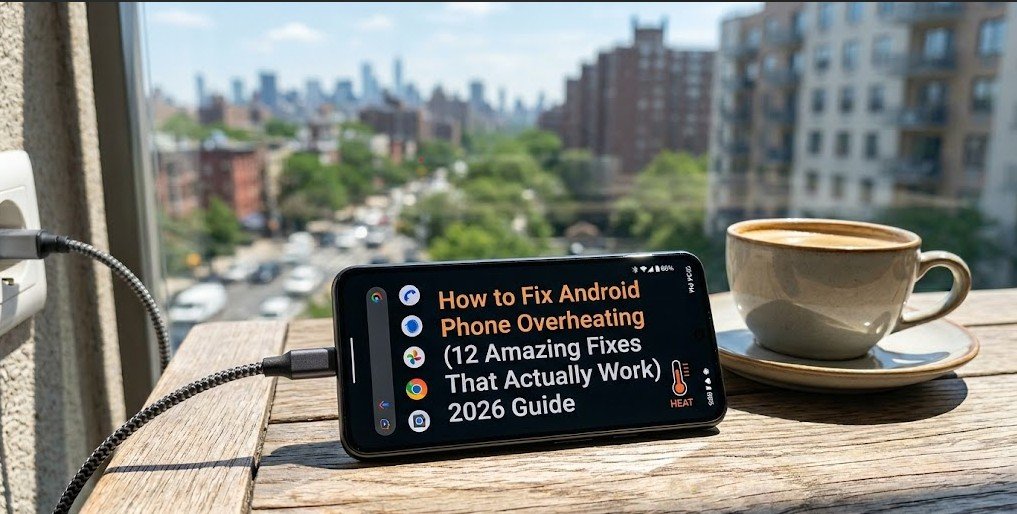
Android Phone Overheating? 12 Amazing Fixes That Actually Work (2026 Guide)
Is your Android phone getting too hot to touch? Does it heat up quickly while using apps, charging, or even while idle? You’re not alone.
Phone overheating is one of the most common problems Android users face in 2026. It can damage your battery, slow down performance, and even cause serious hardware issues if ignored.
In this complete guide, I’ll show you 12 proven fixes that actually work to stop your Android phone from overheating.
Let’s fix it step by step.
Why Does Your Android Phone Overheat?
Before jumping to fixes, let’s understand the common causes:
- Running too many apps in the background
- Using the phone while charging
- Direct sunlight or hot environment
- Outdated software or apps
- Faulty battery or hardware
- Heavy gaming or video streaming
- Poor signal (phone works harder)
Now let’s fix these issues one by one.
Fix 1: Close Background Apps
Most phones overheat because too many apps are running in the background.

How to fix:
- Go to Settings → Apps
- Tap See all apps
- Tap the three dots (top right) → Show system
- Force stop unnecessary apps
- Also go to Battery → Battery usage and check which apps are using the most power
Tip: Use the Recent Apps button and swipe away all apps.
Fix 2: Stop Using Phone While Charging
Using your phone while it’s charging is one of the biggest reasons for overheating.

Solution:
- Avoid playing games, watching videos, or using heavy apps while charging.
- Use Airplane mode while charging to reduce heat.
- Charge your phone when it’s cool (not in direct sunlight).
Fix 3: Update Your Software
Outdated Android version or apps can cause overheating.

How to update:
- Go to Settings → System → System updates or Search “updates”
- Check for updates and install them
- Also update all apps from Google Play Store
Fix 4: Turn Off Unused Features
Features like Bluetooth, Location, NFC, and 5G can make your phone hot.

Quick fix:
- Turn off Location when not needed
- Turn off Bluetooth if not using
- Switch from 5G to 4G in areas with weak signal
- Turn off Always On Display
Fix 5: Remove Unnecessary Widgets and Live Wallpapers
Live wallpapers in your Phone and too many widgets using for home screen consumed a lot of processing power.

Solution:
- Change to a static wallpaper
- Remove unnecessary widgets from home screen
Fix 6: Clear Cache Partition
Cached data can slow down your phone and cause heating.

How to clear cache:
- Turn off your phone
- Press and hold Volume Up + Power button
- Select Wipe cache partition
- Reboot your phone
Fix 7: Check for Rogue Apps
Sometimes one bad app causes overheating.

How to find it:
- Go to Settings → Battery → Battery usage
- Check which app is using the most battery
- Uninstall or force stop suspicious apps
Fix 8: Avoid Direct Sunlight and Hot Environments
Heat from outside makes your phone hotter.
Tips:
- Don’t leave your phone in a hot car
- Avoid using it in direct sunlight
- Keep your phone in a cool place
Fix 9: Use Battery Saver Mode
Battery Saver reduces background activity and can lower temperature.
How to enable:
- Swipe down notification panel
- Tap Battery Saver or go to Settings → Battery → Battery Saver
Fix 10: Factory Reset (Last Software Resort)
If nothing works, a factory reset can fix software-related heating issues.

Warning: Backup your data first!
How to reset:
- Go to Settings → System → Reset options
- Tap Erase all data (factory reset)
- Confirm and wait
Fix 11: Check Your Battery Health
Old or damaged batteries often cause overheating.

How to check:
- Download apps like AccuBattery or CPU-Z
- If battery health is below 80%, consider replacing the battery
Fix 12: Visit a Service Center (Hardware Issue)
If your phone still overheats after trying all fixes, it could be a hardware problem (faulty battery or motherboard).

Recommendation:
- Visit an authorized service center
- Get your phone checked professionally
How to Prevent Android Overheating in Future
- Don’t use heavy apps for long periods
- Keep your phone updated
- Avoid fast charging when possible
- Use original charger and cable
- Keep storage at least 20% free
- Restart your phone once a day
Frequently Asked Questions (FAQ)
Q1: Is it normal for my Android phone to get warm? Yes, if your phone is normal heatup. But if the phone it’s too hot to keep in hand, it’s a problem.
Q2: Can overheating damage my phone? Yes. It can damage the battery life and reduce its bettery timing.
Q3: Should I put my phone in the fridge to cool it down? No. Sudden temperature change can damage your phone.
Q4: Does gaming cause overheating? Yes, especially heavy games like PUBG, COD, or Genshin Impact.
Q5: How long should I charge my phone? Charge until 80-90% and unplug. Avoid overnight charging.
Final Words | Android Phone Overheating
Android phone overheating is annoying but fixable in most cases. Start with the simple fixes first (Fix 1 to Fix 6) and work your way down.
Maximum users are trying to solve this problem by closed the background apps, update the Apps, and avoiding phone using during charging.
If your phone is still overheating after trying everything, it might be time to visit a service center.
Did this guide help you? Drop a comment below and tell me which fix worked for you. Also share this article with friends who are facing the same problem!
📚 More Tech Fixes You Might Need:
→ Phone Charging Slowly? 10 Hidden Reasons & Free Fixes
📧 Contact Us | 🔒 Privacy Policy
1 thought on “Android Phone Overheating? 12 Amazing Fixes That Actually Work (2026 Guide)”